
When batch-converting documents, you might need to append or prepend specific text strings to the original file names — such as adding a constant legal case prefix and a date as a suffix. Instead of manually renaming each file after conversion, use User Defined Macros (UDM) in DocuFreezer to automate this process.
Common use cases:
- Adding project or case identifiers to converted files (e.g., a legal case identifier)
- Appending processing dates
- Creating standardized archive filenames
- Preparing files for document management systems
Steps to Add a Custom Prefix and Suffix Using "UDM" Macros for the Output Filename
- Open DocuFreezer, click on Settings, and navigate to the Advanced tab.
- Scroll down to the Application → Files and folders section.
- In DocuFreezer Settings → Advanced, locate the Output filename template setting and change its value exactly to:
{*UDM(Prefix)}-{*SrcFilename}-{*UDM(Suffix)}.{*DstFileExt}
Here's how it works:
- {*UDM(Prefix)}: A user-defined macro where you manually enter your custom prefix, such as a legal case number.
- - and .: Literal characters acting as visual separators.
- {*SrcFilename}: Automatically retrieves and inserts the original document's name.
- {*UDM(Suffix)}: A user-defined macro for your custom suffix, which accepts static text or dynamic macros like {*Date(yyyy-MM-dd)}.
- {*DstFileExt}: Automatically applies the correct file extension for your selected output format (e.g., PDF).
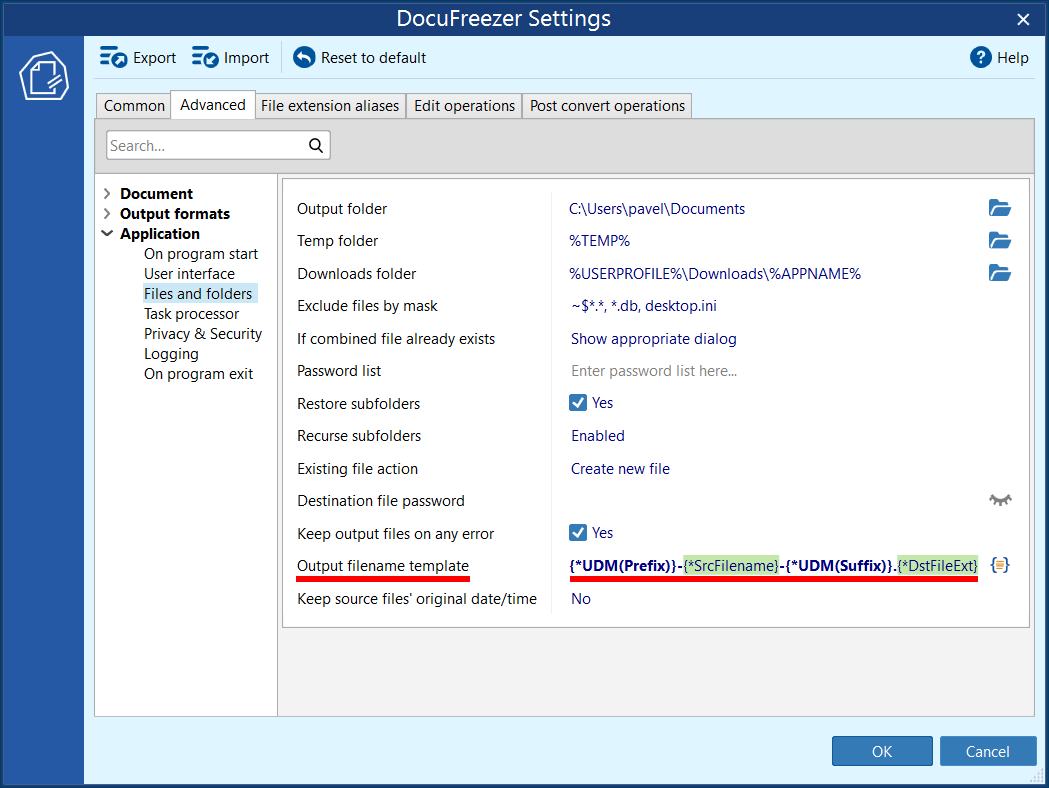
 UDM stands for "User Defined Macro". Please note that DocuFreezer automatically displays the "Define user macros" dialog only when the filename template contains User Defined Macros (UDM).
For example, suppose you're converting a file named "Contract.eml". If you specify "ARB-24-0012" as the Prefix and use *{Date(yyyy-MM-dd)} as the Suffix, DocuFreezer will generate an output file named "ARB-24-0012-Contract-2026-06-16.pdf".
Besides filenames and dates, you can use other DocuFreezer macros such as source folder names, file metadata, counters, and timestamps. Learn more →
Setting this naming pattern will allow you to customize the files' output names by adding your own "Prefix" and "Suffix" parts to the output filename.These values are applied to all files in the current conversion batch.
- Click OK to save your configuration.
- Add your documents to the List of files and click the Start button to begin the conversion process.
- Since your new template includes user-defined macros that require manual input, a "Define user macros" dialog window will automatically pop up. Here you can enter your own custom text or macros according to your naming convention.
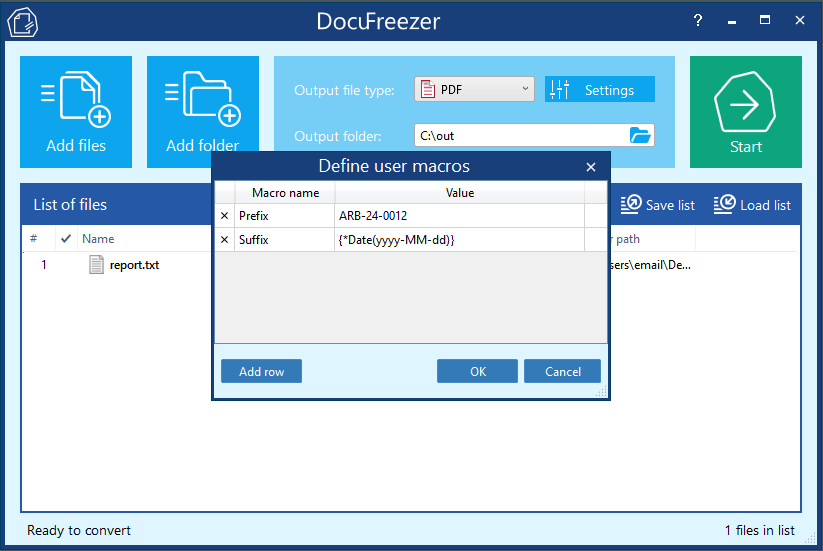
- Fill in the specific values for your Prefix and Suffix. You can use static text for a constant prefix (e.g., a legal case name like "ARB-24-0012" as illustrated on the screenshot) or use dynamic macros for the suffix like {*Date(yyyy-MM-dd)} to automatically insert the current date.
- Click OK in the dialog box to apply these values and finish processing your files with the new naming structure.
Output filename examples
Since this is a custom output filename template, you can modify it as you like. Below are some common examples.
| Template | Result |
|---|---|
| Archive-{*SrcFilename}.{*DstFileExt} | Archive-Contract.pdf |
| {*SrcFilename}-{*Date(yyyy-MM-dd)}.{*DstFileExt} | Contract-2026-06-12.pdf |
| {*UDM(Prefix)}-{*SrcFilename}-{*UDM(Suffix)}.{*DstFileExt} | ARB-24-0012-Contract-2026-06-12.pdf |
Converted files will now follow the naming pattern you specified. If you require assistance configuring a different naming pattern or additional macros, please contact our support team.
 You may also like to read: