
Large PDF files can be difficult to email, upload, and store. With DocuFreezer’s Minimize file size setting, you can reduce the size of output PDFs when processing multiple documents in one batch.
PDF optimization combines image compression with cleanup of the document’s internal structure. It can be especially useful for PDFs containing high-resolution scans, photos, or repeated content. The amount of space saved depends on what each document contains and how efficiently it is already stored.
How to reduce PDF file size
- Add your files to DocuFreezer. Drag and drop them into the List of Files, or use Add files or Add folder.
- Select PDF as the output format and choose an output folder.
- Open Settings → Advanced.
- Go to Output formats → PDF and open the Minimize file size options, select Enabled, choose image compression method, and click OK.
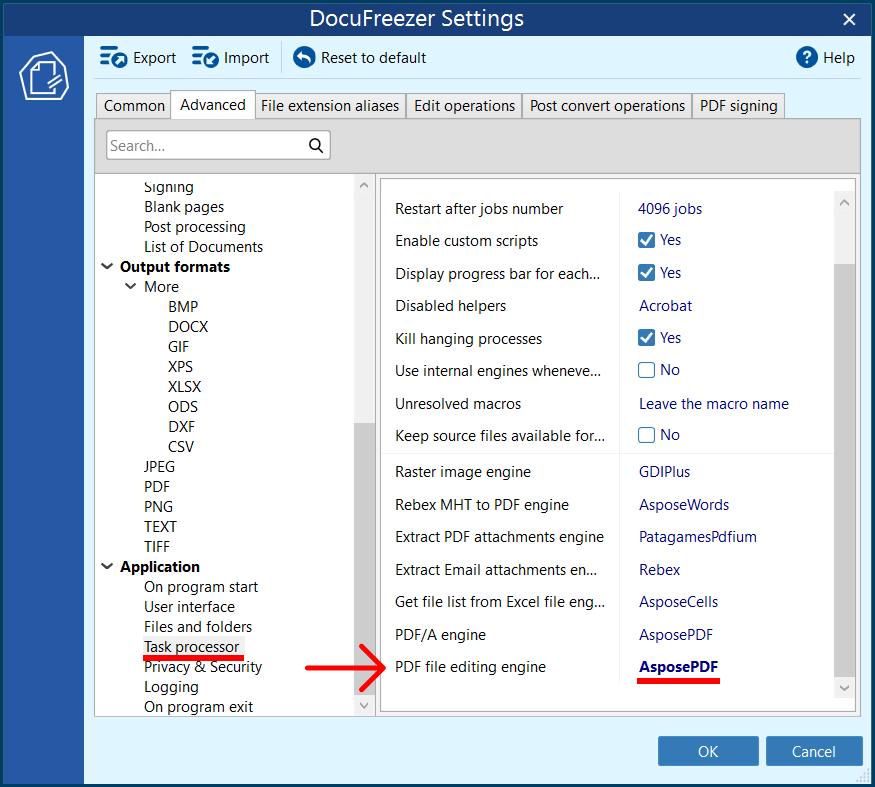
- Go to Application → Task processor and set PDF file editing engine to AsposePDF.
- Click OK to save the settings, then click Start to process your files.
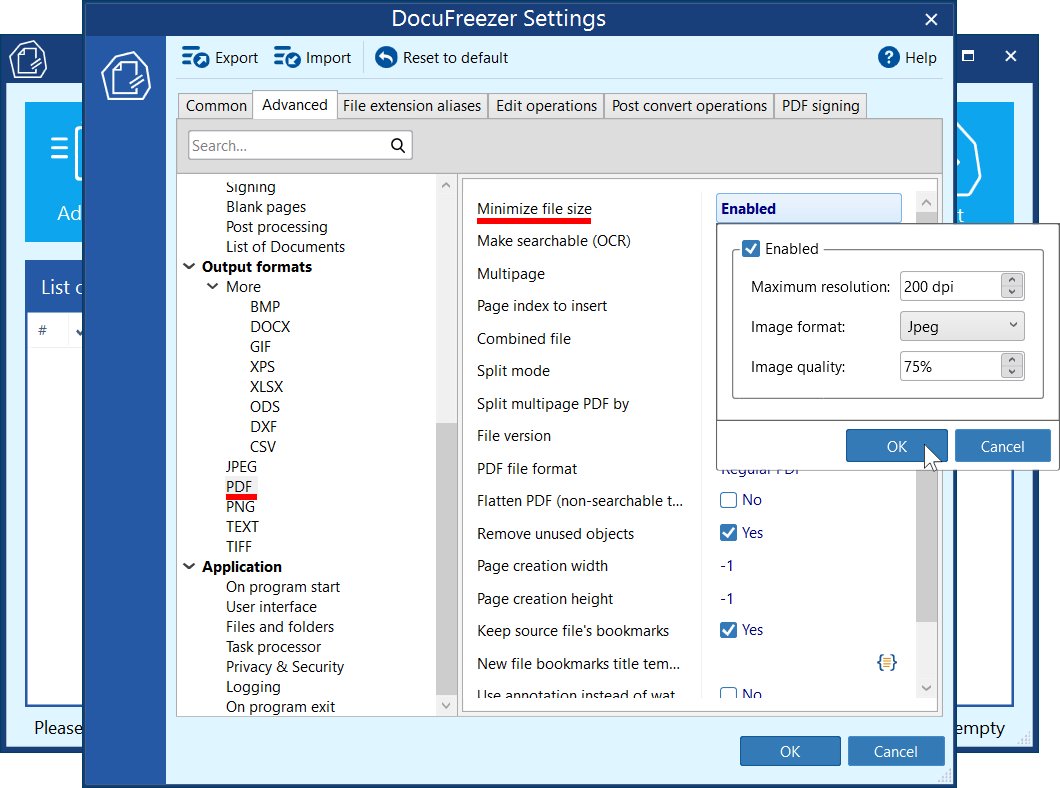
Important: The Minimize file size setting requires the AsposePDF engine. Make sure both settings are configured before starting.
Choose an image compression method
In the Minimize file size options, use Image format to choose how images inside the PDF are encoded.
| Image format | When to choose it |
|---|---|
| As is | Keep the existing image encoding while applying other PDF optimization settings. |
| Jpeg | A good starting point for photos and color scans. Uses lossy compression to reduce file size, with a possible loss of image detail. |
| Flate | Suitable for screenshots, diagrams, and graphics with solid colors and sharp edges. Uses lossless compression, but may produce larger files than JPEG for photos. |
| Jpeg2000 | Worth trying when you need smaller files with acceptable image quality. It can compress images more efficiently than JPEG at comparable quality, though results depend on the content. |
For a practical comparison, process the same source files with Jpeg and Jpeg2000, then compare their sizes and image quality.
Note: Maximum resolution (DPI) also affects file size and image detail. Even with Flate, reducing image resolution can remove fine detail.
How PDF optimization works
When Minimize file size is enabled, DocuFreezer uses the following methods to reduce the amount of data stored in the output PDF:
| Optimization method | What it does |
|---|---|
| Reuse page content | Allows identical pages to share stored page content, reducing duplication within the PDF. |
| Reduce embedded image resolution | Downscales images whose resolution exceeds the optimization limit. Fewer pixels mean less image data to store. |
| Compress objects and images | Compresses internal PDF objects and embedded images to reduce the space they occupy. |
| Remove unused objects | Removes internal objects that are no longer referenced by the document. |
| Remove unused streams | Removes resources that remain in the PDF but are no longer used, such as resources left behind after pages were removed. |
| Link duplicate streams | Finds resource streams with identical content and stores a single shared copy instead of multiple copies. |
These operations address different sources of excess file size: large images, duplicated data, and unused resources.
Will optimization affect image quality?
Reducing image resolution can make fine details less sharp, especially when you zoom in or print at a large size. Image compression may also affect quality.
After processing, open a sample output PDF and check the content that matters for your workflow — for example, small text in scanned pages, diagrams, or photos.
If the result does not meet your requirements, clear the Enabled checkbox in the Minimize file size options and process the original files again
How much smaller will the PDFs be?
The amount of size reduction depends on the document’s contents and the selected optimization settings. PDFs with high-resolution images or duplicated resources may offer more opportunities for size reduction. Files that are already optimized may show little change.
In a test with four PDF files, individual file sizes decreased by approximately 10-13%. Their combined size dropped from 548 KB to 484 KB — a reduction of about 11.7%. Results will vary depending on the source files and optimization settings.
Compare the original and output file sizes after processing a representative batch. This will give you a more useful estimate for your documents than a fixed compression percentage.
For details about this and other PDF output options, see DocuFreezer Advanced Settings.